 |
Open Windows Live Mail. If you are opening it for the first time the e-mail setup dialog box should automatically appear, if not... |
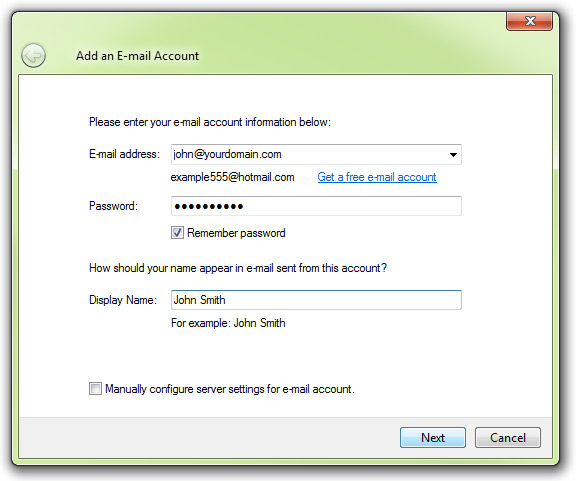 |
Enter your e-mail address, password and desired Display Name. Then click the 'Next > ' button |
 |
Make sure the first drop down option is set to POP3 Set both incoming and outgoing server address fields to: mail.yourdomain.com Tick the option 'My outgoing server requires authentication' Now click the 'Next > ' button |
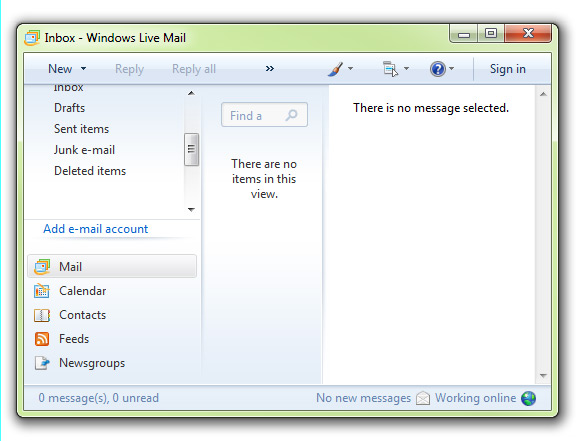 |
In the next window press 'Finish' Windows Live Mail will check the settings and search for mail, you will see the result down the bottom right of the program window If you are presented with an error right click on the account in the left panel and remove it. Go through the guide again and double check your enetered settings. |